


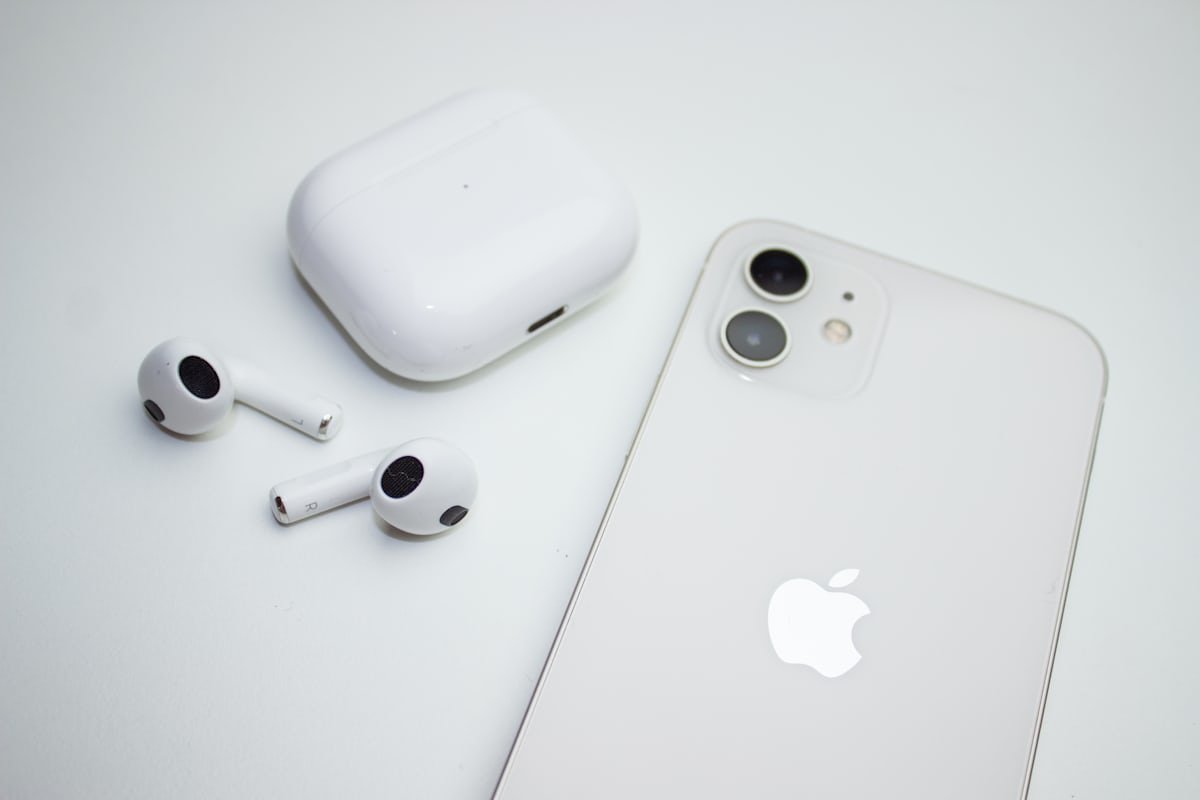
Apple designed AirPods to work seamlessly with the iPhone, but if you’re setting them up for the first time or reconnecting them to a new device, you may still need clear instructions. Whether you’re using AirPods, AirPods Pro, or AirPods Max, this guide explains exactly how to pair AirPods with an iPhone in just a few minutes.
What You Need Before Pairing AirPods With iPhone?
Before starting the pairing process, make sure a few basic requirements are met. Your iPhone should be unlocked, powered on, and connected to the internet. Bluetooth must be enabled, and your AirPods should have enough battery charge to complete setup. Also, ensure your iPhone is running a recent version of iOS for the smoothest experience.
If your AirPods are brand new, pairing is almost automatic. If they’ve been used before, the process may require a manual reset. You can Also Buy Customized Airpods Pro 2,3 or 4 from some valid E-shops like eBay, AS2, or Amazon.
How to Pair New AirPods With iPhone?
Pairing brand-new AirPods with an iPhone is one of Apple’s easiest setups.
Start by unlocking your iPhone and placing it on the Home screen. Keep the AirPods inside their charging case and open the lid. Hold the open case close to your iPhone. Within a few seconds, a setup animation should appear on your screen.
Tap “Connect” and follow the on-screen instructions. If you’re signed in to iCloud, your AirPods will automatically sync with other Apple devices using the same Apple ID. Once the setup is complete, tap “Done,” and your AirPods are ready to use.
At this point, audio from your iPhone will automatically play through your AirPods whenever you put them in your ears.
How to Pair AirPods Manually Using Bluetooth?
If the automatic pairing screen doesn’t appear, you can connect AirPods manually through Bluetooth settings.
Open the Settings app on your iPhone and tap Bluetooth. Make sure Bluetooth is turned on. Place your AirPods in their charging case and open the lid. Press and hold the setup button on the back of the case until the status light starts flashing white.
Your AirPods should now appear in the list of available devices under Bluetooth. Tap their name to connect. Once connected, the status will change to “Connected,” confirming successful pairing.
This method works for all AirPods models and is especially useful when pairing with a new iPhone.
How to Pair AirPods Pro or AirPods Max With iPhone?
AirPods Pro follow the same pairing steps as standard AirPods. Simply open the charging case near your iPhone and follow the on-screen instructions.
For AirPods Max, the process is slightly different. Take the headphones out of the Smart Case and hold them near your iPhone. Press and hold the noise control button until the pairing animation appears. Tap “Connect,” and complete the setup.
Once paired, AirPods Max will automatically reconnect whenever they are powered on and within range.
What to Do If AirPods Won’t Pair With iPhone?
If your AirPods are not connecting, a few simple fixes usually solve the problem.
First, make sure Bluetooth is turned on and your iPhone is updated. Next, reset your AirPods by placing them in the case, closing the lid for about 30 seconds, then reopening it. Press and hold the setup button until the light flashes amber and then white.
After resetting, try pairing again using either the automatic or manual method. If the issue continues, restart your iPhone and repeat the process.
Most pairing problems are caused by low battery, outdated software, or Bluetooth interference.
How to Check If AirPods Are Successfully Connected?
Once paired, you can confirm the connection in several ways. Open Control Center on your iPhone and check the audio output icon. If AirPods are connected, their name will appear as the active audio device.
You can also go to Settings, then Bluetooth, and look for your AirPods listed as “Connected.” When you put them in your ears, you should hear the connection chime.
Final Thoughts on Pairing AirPods With iPhone
Pairing AirPods with an iPhone is designed to be fast, intuitive, and nearly automatic. Whether you’re setting up new AirPods or reconnecting an existing pair, following the correct steps ensures a smooth experience. Once connected, AirPods deliver seamless audio, quick device switching, and hands-free convenience that fits perfectly into the Apple ecosystem.
If you ever switch to a new iPhone, simply signing in with the same Apple ID makes pairing effortless again.