


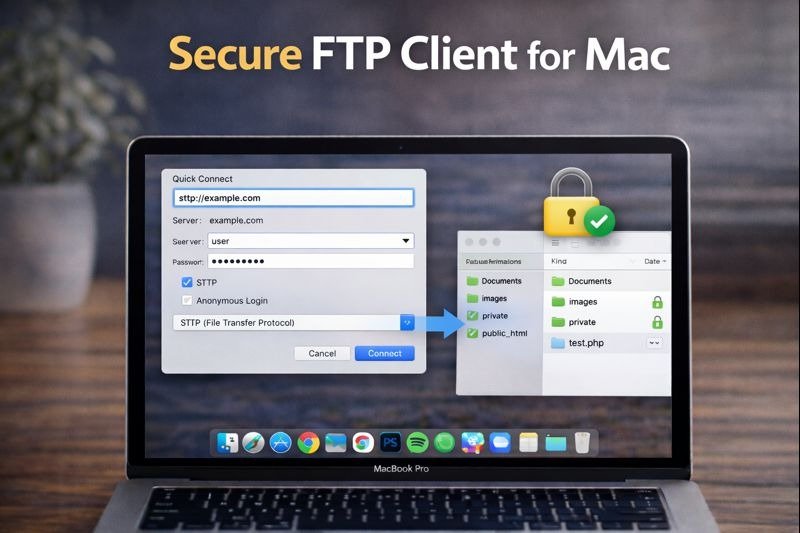
Working with FTP servers is still common for developers, website owners, and businesses. But security is one of the biggest concerns when transferring files over the internet.
Many users assume FTP is always safe, but the truth is that plain FTP has serious risks if used incorrectly. Choosing a secure client and the right protocol makes a big difference, especially for ftp for mac workflows.
Why Security Matters When Using FTP
FTP was created a long time ago, before modern encryption standards were common. That is why security becomes an issue today.
What Can Go Wrong With Basic FTP
Plain FTP does not encrypt data. This means:
- Login credentials can be exposed
- Files can be intercepted during transfer
- Sensitive information may be visible on public networks
That is why basic FTP should not be used for private or business-critical work.
When You Should Avoid Plain FTP
You should avoid standard FTP when:
- You are working on public Wi-Fi
- You are transferring confidential files
- Your server supports SFTP or FTPS instead
In most modern cases, secure protocols are the better choice.
FTP, SFTP, and FTPS Explained Simply
Many people see these terms but do not know the difference.
Key Differences Between FTP and SFTP
FTP sends data in plain text.
SFTP sends data through SSH encryption, which protects both login details and file transfers.
FTPS also adds encryption, using SSL/TLS instead of SSH.
Which Protocol Is Safer for Daily Use
For most users, SFTP is the safest and most widely recommended option.
If your goal is secure ftp for mac access, choosing SFTP over FTP is usually the best move.
What a Secure FTP Client Should Offer
A good secure FTP client is more than just an upload tool. It should provide protection and ease of use.
Encrypted Connections
The client should support:
- SFTP
- FTPS
- Strong encryption standards
Encrypted connections prevent third parties from reading your data.
Safe Credential Storage
A secure client should store passwords safely, ideally using system tools like macOS Keychain.
Easy Access to Files
Security should not make workflow harder. A good client still allows:
- Quick browsing
- Simple uploads and downloads
- Organized server access
Compatibility With macOS and Windows
Many users work across multiple systems. Secure clients that support both macOS and Windows provide better flexibility.
Using CloudMounter as a Secure FTP Client
CloudMounter is popular because it changes how FTP access works on a Mac.
Connect FTP Servers as Finder Drives
Instead of using a separate transfer window, CloudMounter mounts FTP and SFTP servers directly inside Finder.
This makes the server behave like a drive, which feels natural for daily use.
Client-Side Encryption for FTP Data
CloudMounter includes encryption-focused features that help protect file access while using remote servers.
This adds an extra layer of security beyond plain FTP workflows.
Manage Multiple Servers in One Place
If you manage several servers, CloudMounter allows you to keep everything accessible from one Finder sidebar without reconnecting constantly.
FTP Access Through Finder and File Explorer
Mounted access is becoming more popular because native file managers are where most people work daily.
Why Native File Managers Matter
Finder (on Mac) and File Explorer (on Windows) are already familiar.
Working inside them reduces mistakes and makes file handling faster.
How Mounted FTP Improves Workflow
Mounted FTP access allows you to:
- Drag files like normal folders
- Browse remote storage without extra apps
- Avoid constant manual transfers
Differences From Traditional FTP Clients
Traditional clients focus on upload/download sessions.
Mounted tools focus on direct drive-style access, which is often smoother for routine work.
How to Map an FTP Server on Mac
Mapping an FTP server is simple with the right tool.
Add FTP Connection in CloudMounter
To connect:
- Open CloudMounter
- Select FTP or SFTP connection
- Enter server address, username, and password
- Save and mount the connection
Open and Edit Files Like Local Data
Once mounted, files can be opened and edited directly through Finder, making the workflow easier.
Disconnect and Reconnect Securely
You can disconnect anytime, and reconnect later without re-entering credentials if stored securely.
Who This Setup Is Best For
Secure FTP access is important for many different users.
Developers and Web Admins
Developers managing hosting servers need secure transfers and reliable connections.
Businesses Handling Sensitive Files
Companies working with confidential documents should never rely on plain FTP.
SFTP-based access is the safer approach.
Users Managing Multiple Servers
For people managing many accounts, mounted access keeps servers organized and easy to reach.
FAQs
Does macOS have a built-in FTP client?
macOS offers limited FTP access through Finder, but it is not a full secure client for professional work.
Is FTP safe to use today?
Plain FTP is not considered safe. SFTP or FTPS should be used instead.
What’s the difference between FTP and SFTP?
FTP is unencrypted, while SFTP encrypts both credentials and file transfers through SSH.
How do I FTP from a Mac securely?
The best method is:
- Use an SFTP-enabled client
- Store credentials safely
- Avoid plain FTP on unsecured networks
Final Words
FTP is still useful, but security matters more than ever. For anyone working with ftp for mac regularly, the safest approach is using secure protocols like SFTP and a client that provides encrypted access, safe credential storage, and smooth Finder-based workflow.
Choosing the right secure FTP client protects both your data and your server access.